
Page viewed conversion metrics
This topic explains how to create a page viewed metric in LaunchDarkly.
About page viewed metrics
Page viewed metrics track how often end users view an element on a page hosted at a specific URL. For example, you could track how often customers view an item when its price is discounted different amounts.
For example, you can use page viewed metrics to track:
- How many times a blog post was viewed
- Whether or not customers view a help article
Page viewed events are different from session replay visited URL properties
LaunchDarkly’s observability features include a session replay plug-in that automatically tracks the URLs a user visits during a session recording. You can use the session replay visited-url property to filter the sessions displayed in the Sessions tab of the LaunchDarkly UI. However, you cannot use this property as an event for creating new metrics.
This topic describes how to instrument page viewed events and metrics that you can use to create experiments or guarded rollouts.
Example metric in SQL
Some customers find it helpful to think about LaunchDarkly metric calculations in terms of SQL statements. The following examples show how different page viewed metrics could be represented as SQL expressions, using example table and column names to represent metric components:
In these examples:
eventsis a table that stores all of the metric events on which the metric is defined.exposuresis a table that contains flag evaluation data collected during an experiment or guarded rollout that uses the metric.user_idis a table column that represents the context both for the metric analysis unit and for the randomization unit used in the experiment or guarded rollout. This example uses the “user” context kind, but a metric can use other context kinds, such as “account,” “session,” or “device.”aggregation_funcrepresents the aggregation function that corresponds to the analysis method you select, such asAVGfor average analysis orPERCENTILE_CONTfor percentile analysis.
Prerequisites
Page viewed metrics are only compatible with the following JavaScript-based client SDKs:
- Electron
- JavaScript
- Node.js (client-side)
- React Web
- Vue
If you do not use one of these SDKs and would like to track page views, use a custom conversion binary metric instead.
Flush events when an end user is redirected
SDKs send events at regular intervals, such as every five seconds. If a browser redirects an end user to another page, any events that occurred between when the SDK last sent events and when the browser redirected will be lost. To avoid this, flush events when you know the browser will redirect an end user to another page, such as on click. To learn more, read Flushing events.
Metric definition
When you create a page viewed conversion metric, you first choose the metric aggregation type:
- Count uses sum aggregation to measure the total number of times a context views a matching page.
- Count distinct units (Percent) uses average aggregation to measure whether or not a context visits a matching page. This option automatically sets the metric analysis type to average, to measure the percent of units that visit a matching page for a given flag variation.
If you aggregate using the Count option, you must also choose the metric analysis method:
- Average: the default Average analysis method calculates the average number of page views per context for a given flag variation. For metrics you plan to use in funnel metric groups, you must select “Average.”
- Percentile: you can choose between P50-P99, which represent the 50th through the 99th percentile. This method counts the page views per context, then finds the number of page views that fall into the chosen percentile.
If you choose Count distinct units (Percent), the metric definition automatically uses the “Average” analysis method.
To learn more about the metric definition options, read Analysis method and Analysis units.
Create page viewed metrics
To create a page viewed metric:
- Open the Data section and navigate to the Metrics list.
- Click Create metric. The “Create metric” dialog appears.
- If you use warehouse native metrics, you can select either LaunchDarkly hosted or Warehouse native. Select LaunchDarkly hosted.
- Select an event kind of Page viewed.
- Specify the Target type you want to track behavior on. Expand the section below to view the four types of URL matching.
Expand URL matching options
- Enter the full URL or search pattern in Target URL.
- (Optional) Click Add target URL to track behavior on more than one URL target.
- In the Metric definition section, choose either Count or Count distinct units (Percent) from the menu to configure the aggregation type. The window populates a full metric definition using default values.
- Use the [analysis unit] menu to change or add analysis units. For page viewed metrics, the analysis unit defaults to “user,” “customer,” or similar, representing an individual person. Only context kinds marked as available for experiments and guarded rollouts appear as options. To learn more, read Mark context kinds available for experiments.
- For the Count aggregation type, choose either Average or a percentile between P50-P99 click rate to specify the metric analysis method.
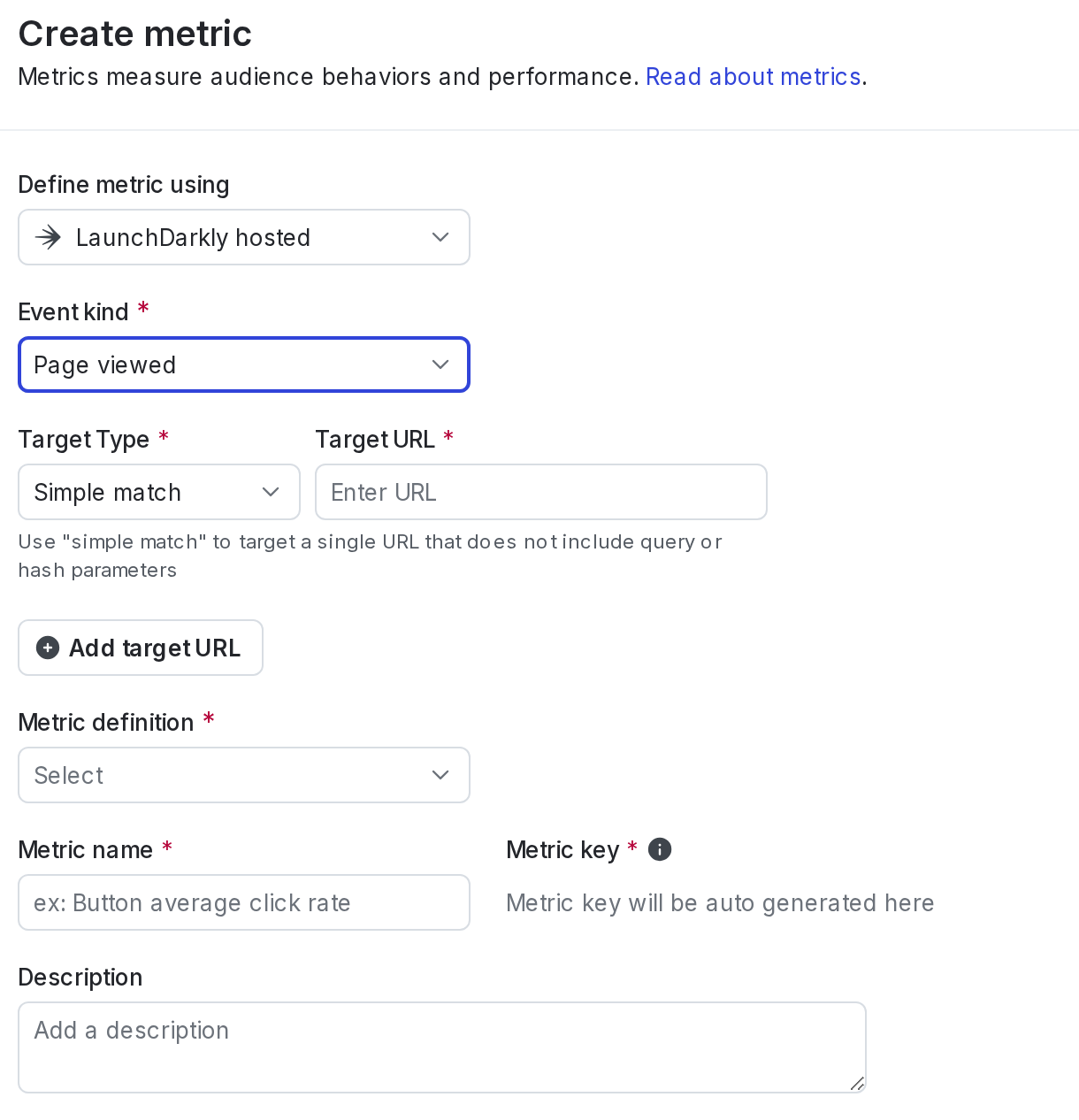
- Enter a metric Name.
- (Optional) Add a Description.
- (Optional) Add any Tags.
- (Optional) Update the Maintainer.
- Click Create.
You can connect the metric to an experiment or guarded rollout to monitor the impact of a flag change.

You can also use the REST API: Create metric