
Using the LaunchDarkly CLI for local testing
This guide describes how to use the LaunchDarkly CLI to perform local testing and development.
LaunchDarkly provides a command line interface (CLI), which includes a dev-server command that you can use to start a local server and retrieve flag values from a LaunchDarkly source environment. This development server supports a single variation value for each flag, which you can override as needed. This means you can test your code locally, and you do not need to coordinate with other developers in your organization who are using the same LaunchDarkly source environment.
Prerequisites
First, install the LaunchDarkly CLI. To use the dev-server command in the LaunchDarkly CLI, you must have a minimum version of 1.4.0.
Expand for installation and upgrade instructions
To install the LaunchDarkly CLI:
To update to the latest version of the LaunchDarkly CLI:
Before you run commands in the LaunchDarkly CLI, you need to authenticate yourself. You only need to do this once.
Expand for authentication instructions
To authenticate yourself in the LaunchDarkly CLI:
If you want to use the dev-server command in a preview environment, there’s no one to log in. As a result, you need to set up a service token that you add to your secrets store, and then configure your preview environment to use that token.
To learn more about service tokens, read Creating API access tokens.
To learn more about authentication in the LaunchDarkly CLI, read Authentication.
Start the LaunchDarkly CLI development server
Next, start the LaunchDarkly CLI dev-server and keep it running in the background:
Then, configure the dev-server to access flags from your preferred LaunchDarkly project and environment. You will need:
- your project key, which you can copy from the Projects list in the LaunchDarkly UI. To learn how, read Project keys.
- your environment key, which you can copy from the Environments list in the LaunchDarkly UI. To learn how, read Environment and SDK credentials.
Here’s how:
You can add as many projects as you like. If you’re primarily working in one project, you can set that project as your default within the CLI. Then you do not need to pass in --project to subsequent dev-server commands.
Here’s how:
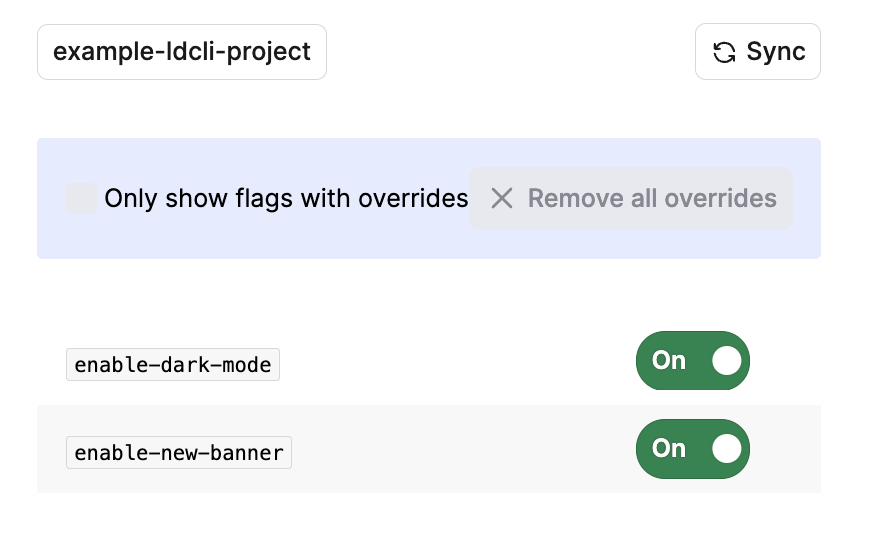
To verify that you’ve added your project and environment to the dev-server correctly, visit the UI for the dev-server at http://localhost:8765/ui/:
Configure your SDK for testing
Next, configure your SDK to connect to the dev-server:
- Set the SDK credentials to the project key of a project you have added to the dev-server. Do not use the SDK key, mobile key, or client-side ID.
- Set the SDK service endpoints to
http://localhost:8765, where the dev-server is running.
Use the project key with ldcli dev-server
When you connect a client-side SDK to the ldcli dev-server for local testing, use your project key as the SDK credential and set all service endpoints to http://localhost:8765.
Do not use an SDK key, mobile key, or client-side ID with the dev-server. If you use a client-side ID, the SDK connects to LaunchDarkly instead of the dev-server, which can result in CORS errors.
This configuration means the SDK uses flags from the project and environment you’ve added to the dev-server, and checks the local dev-server for flag values, rather than connecting to LaunchDarkly.
Here are a few examples of this configuration:
To find an example specific to your SDK, read Service endpoint configuration. Replace the example URIs with http://localhost:8765.
After you configure your SDK, create an appropriate evaluation context for your testing. You can define one that you want to test with manually in your application. Alternatively, you can copy an existing context instance from the context details page in the LaunchDarkly UI.
The context that you define does not need to match what your application might encounter in production, because the dev-server always provides a single variation value for each flag. The dev-server does not connect to LaunchDarkly, and it does not evaluate targeting rules, so every context receives the same flag value. You can override the flag value locally to test alternate paths through your code.
Here are a few examples of contexts you could test with:
To learn more about defining contexts, read Context configuration.
Connect from an HTTPS local application
The LaunchDarkly CLI dev-server serves flag data over HTTP at http://localhost:8765. If your local application is served over HTTPS, some browsers block requests from that page to the HTTP dev-server. This restriction is called mixed content. Safari enforces it for localhost. Chrome may allow HTTP requests to localhost in some cases, which can hide the problem until you test in Safari.
The dev-server does not terminate TLS itself. To use it with an HTTPS local application, put a TLS reverse proxy in front of the HTTP server, then point your SDK service endpoints at the proxy’s HTTPS URL.
The following example uses Caddy and mkcert to terminate TLS locally and forward traffic to the dev-server. You can use another reverse proxy, such as nginx or Traefik, or a tunnel that provides an HTTPS URL to a local HTTP port, as long as the browser requests the HTTPS URL and that endpoint forwards to the HTTP dev-server.
Create a locally trusted certificate
Install Caddy and mkcert, then create a locally trusted certificate for localhost:
Use a locally trusted certificate
Browsers reject self-signed certificates that are not in the local trust store. Tools such as mkcert create a local certificate authority (CA) and issue certificates your browser trusts. If you skip trusting the CA, Safari and other browsers show a certificate warning or block the request.
Start the reverse proxy
Start the LaunchDarkly CLI dev-server as usual:
Create a Caddyfile that serves HTTPS and proxies to the dev-server:
Start Caddy in the directory that contains the Caddyfile and certificates:
Point your SDK at the HTTPS proxy
Configure your SDK to use the HTTPS proxy URL for all service endpoints. Here’s how:
Set and evaluate flags locally
Now that you have configured your SDK to check the local dev-server for flag values, rather than connecting to LaunchDarkly, you can run your application and test it with these local flag values.
The dev-server retrieves flag values from your project and environment only when you explicitly sync with LaunchDarkly. As you perform local development and testing, you can override any flag values that you like. These flag values are served to all contexts.
You can use the dev-server UI at http://localhost:8765/ui/:
- To sync flag values from LaunchDarkly, click Sync
- To override the value of a particular flag, toggle it Off or On
You can also use the LaunchDarkly CLI:
The --project argument is optional if you have set a default project using ldcli config.
Use ldcli dev-server --help to explore additional commands.
Conclusion
In this guide, we described the LaunchDarkly CLI’s development server. The development server copies flags and flag values from your chosen LaunchDarkly project and environment, which enables you to develop and test locally without accessing LaunchDarkly. To learn about all the functionality exposed by the dev server, read the reference guide.
For additional information, or to provide feedback, visit LaunchDarkly CLI on GitHub.